How to View a PDF and Its DOC Side by Side
Step-by-step: open a PDF, show the original beside the extracted HTML, resize the split, and stack both against the detection canvas in a T-split layout.
TLDR
Open a PDF, switch to the Doc tab, and click the PDF icon in the pane header. The original appears beside your extracted document, sharing one render so the toggle is instant. On the Analyze tab you can show both documents at once against the detection canvas, in a T-split.
The walkthrough below follows the recording at the top of this page. Timestamps refer to it.
Before you start
You need a PDF and a browser. Nothing is uploaded, and the whole pipeline runs locally.
The example throughout is a 16-page, two-column academic paper, which is worth using because a single-column memo will not show the column detection doing anything.
Step 1 — Open a PDF (0:04)
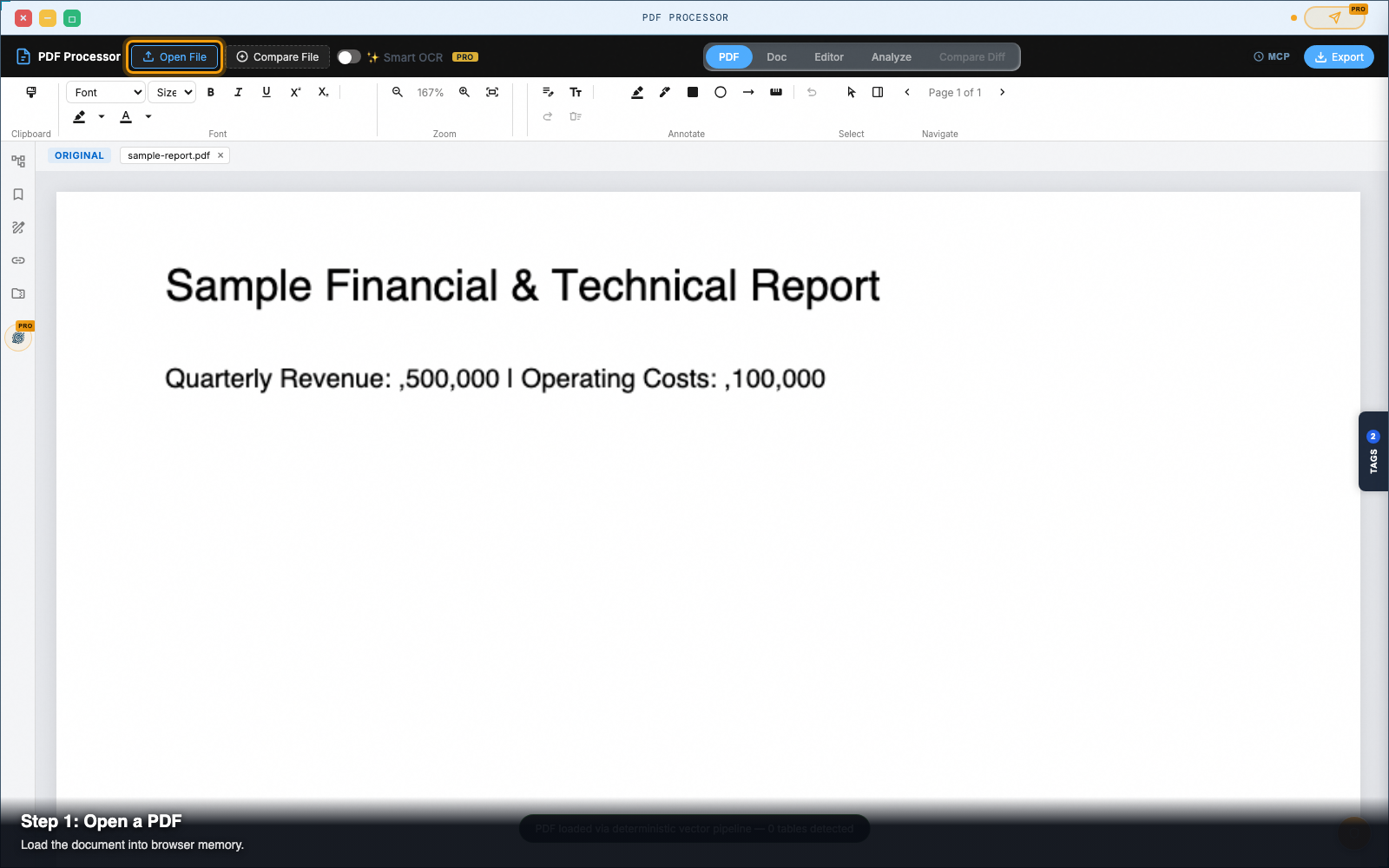
Click Open File in the top bar and pick your document.
Extraction runs once, on load. When it finishes, the PDF tab shows the rendered original, fitted to the width of its pane.
Step 2 — Find the file name in the pane header (0:07)
The filename does not stay on the load button. It moves into the pane header:
ORIGINAL [ N19-1423.pdf ✕ ]This chip is how you manage the open document from now on.
- Click the name to swap in a different file.
- Click the ✕ to unload it.
Step 3 — Switch to the Doc tab (0:09)
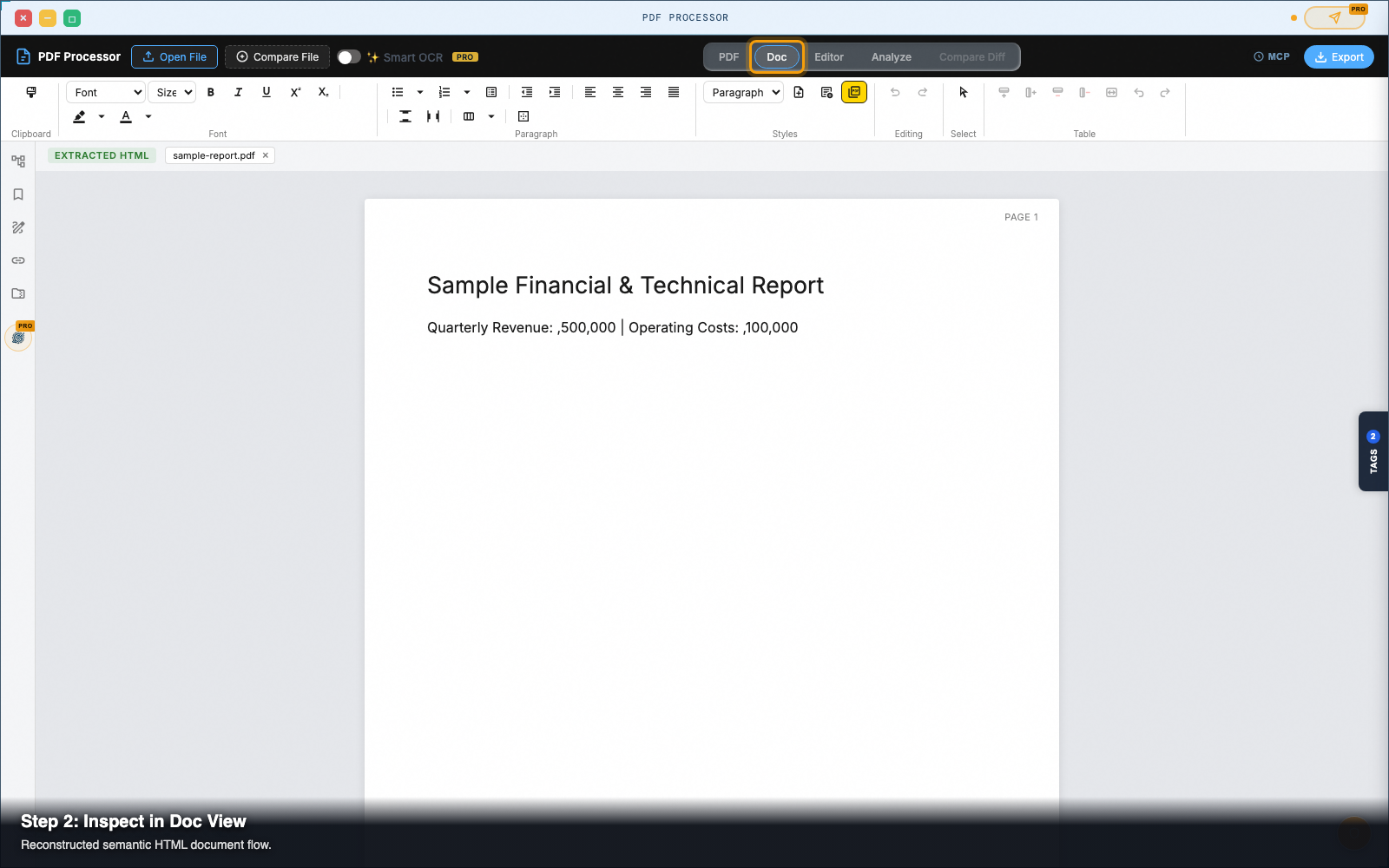
Click Doc in the tab strip. This is the extracted document, and it is editable: click into it and type, or use the formatting toolbar above.
At this point you have the extraction but not the source, so there is nothing to check it against.
Step 4 — Show the original beside it (0:13)
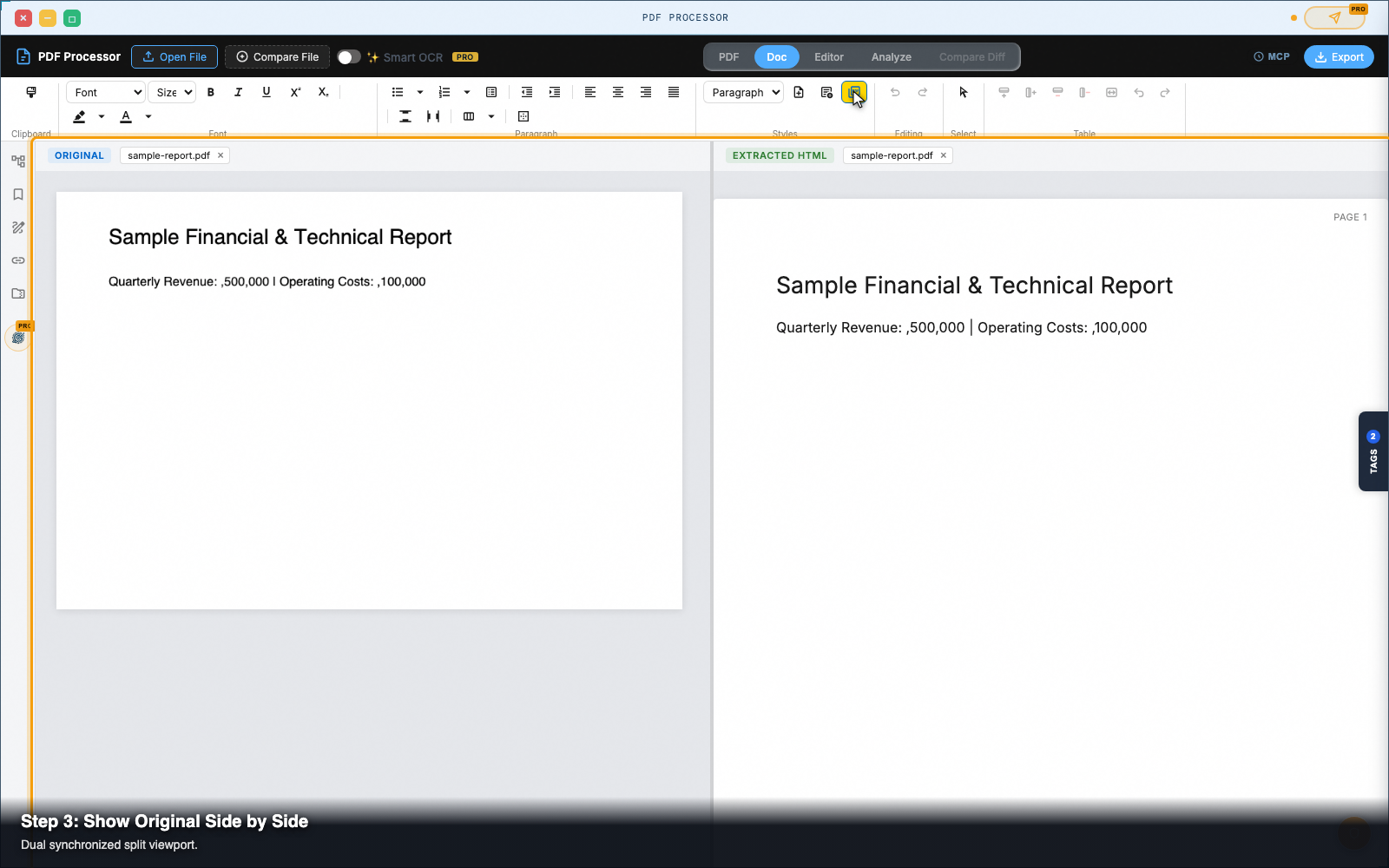
In the Doc pane header, click the PDF icon (tooltip: Show the original PDF alongside the doc).
The original slides in on the left, your extracted document stays on the right, and a divider appears between them. The extracted page also refits, because its pane just got narrower.
Two things to notice:
- Each pane header names its own content,
ORIGINALandEXTRACTED HTML, each with its own file chip (0:15). - Both panes are live. The formatting toolbar follows your cursor, so clicking into the PDF's text layer aims the toolbar at the PDF and clicking back aims it at the document.
Step 5 — Resize the split (0:17)
Drag the divider between the two panes. Both resize live as you drag.
The width is remembered, so if you close the original and show it again later, it returns to the split you chose.
Step 6 — Open the Analyze tab (0:23)
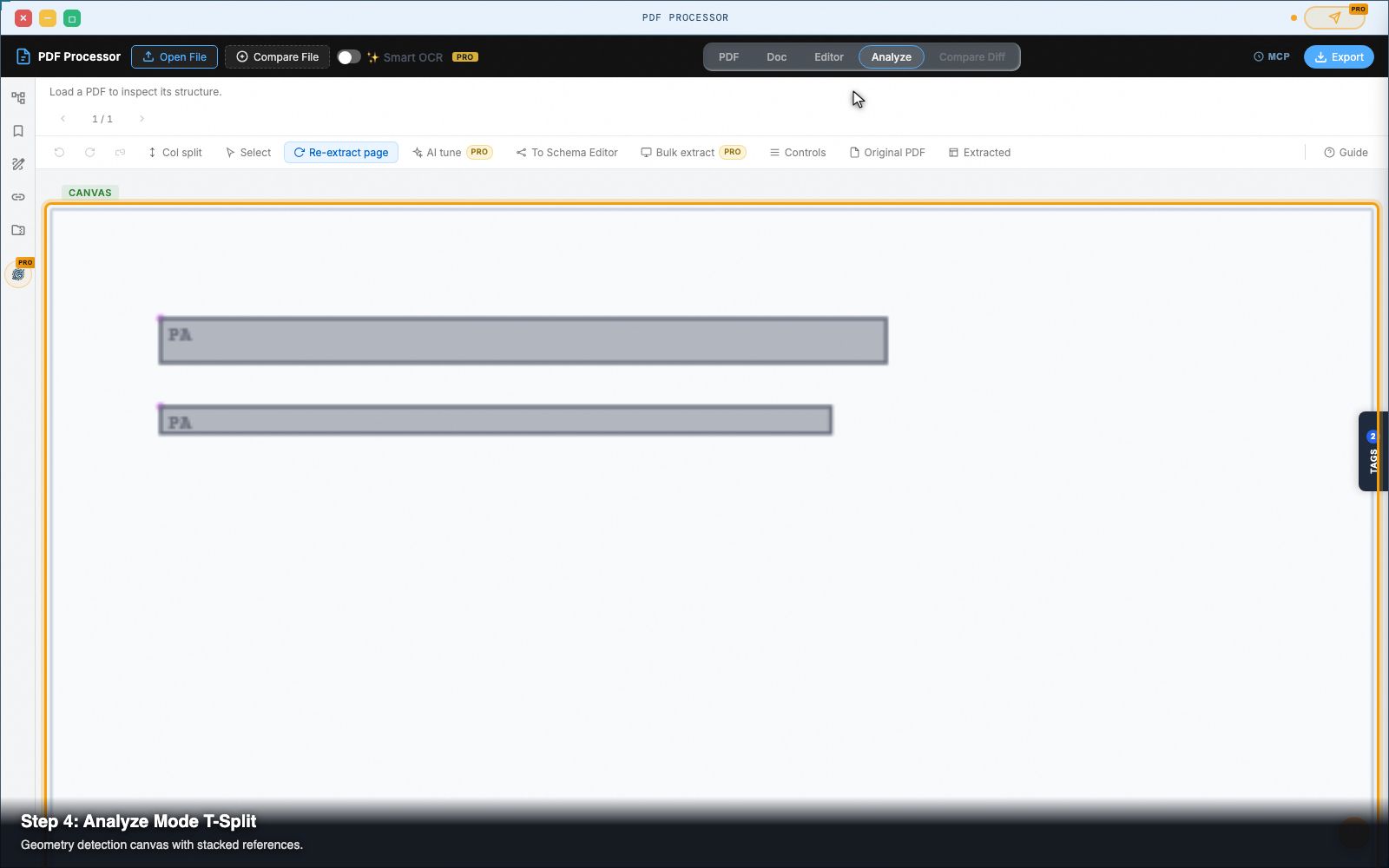
Click Analyze. This is the extractor's own view of the page: detected regions, columns, tables, and headings drawn as overlays on the geometry canvas.
Use it to see why the extraction came out the way it did.
Step 7 — Add the Original as a reference (0:25)
Click Original File in the Analyze toolbar. The source page appears beside the canvas, so you can check the detected regions against the page they came from.
Step 8 — Add the Extracted view too (0:27)
Click Extracted. This is a separate toggle from step 7 on purpose: the two comparisons answer different questions, and you may want either alone.
- Original File answers do the regions match the page?
- Extracted answers did those regions produce the right output?
Step 9 — Work in the T-split (0:29)
With both references on, the layout becomes a T. The two documents stack on the left, the canvas takes the right:
┌─────────────────┬──────────────────┐
│  ORIGINAL       │                  │
├─────────────────┤     CANVAS       │
│  EXTRACTED HTML │                  │
└─────────────────┴──────────────────┘
You now get two dividers (0:31): one between the stacked pair, one between them and the canvas. Both drag.
The PDF is read-only in this tab. Analyze routes no formatting toolbar, so an edit here would land somewhere nothing reflects it.
Step 10 — Narrow the window (0:34)
Below roughly 1024px the panes stack vertically instead of sitting side by side.
The divider follows the axis: it now resizes up and down rather than left and right. Nothing to switch.
Why toggling a pane is instant
Most side-by-side viewers draw the document twice, once per pane, so every toggle costs a full re-parse.
Here the panes share a single render. A 16-page document holds 16 canvases whether one pane is open or three: showing the original reveals a pane that already existed rather than drawing a second copy.
| Two rendered copies | One shared render | |
|---|---|---|
| Canvases for a 16-page file | 32 | 16 |
| Cost of toggling a pane | full re-parse | show / hide |
| Copies to keep in sync | 2 | 1 |
Quick reference
| Want | Do |
|---|---|
| See the original while editing | Doc tab, PDF icon in the pane header |
| Resize two panes | Drag the divider between them |
| Compare regions to the source | Analyze, Original File |
| Check what the regions produced | Analyze, Extracted |
| Both, in a T-split | Analyze, turn on both toggles |
| Swap the open document | Click the file name in the pane header |
| Unload a document | ✕ on the file chip |
Troubleshooting
The PDF icon does nothing. No document is loaded in slot 1. Open one first.
The Extracted toggle does nothing. Extraction has not finished, or produced nothing. Check the Doc tab.
The Analyze canvas is empty. The detection canvas is supplied by the GINEXYS platform. Running the extractor standalone gives you every extraction feature, with that canvas drawn by the platform shell.
The divider will not move. In a T-split there are two. The one between the stacked documents moves them against each other; the one against the canvas resizes the whole group.
PDF Processor — Pull text, tables, and vector geometry out of PDFs — in the browser, with no upload.