Review PDFs, edit tables, and draw schemas: a Ginexys 0.3.3 walkthrough
Checking an extracted document means moving between the original page and the content you want to use. A heading may look right while a table needs another look. Having both views open makes that check easier.
Ginexys 0.3.3 brings a refreshed document workspace to the VS Code extension suite. Document Workbench, Table Formatter, and Construct all have dark mode. This walkthrough shows where to start in each tool and what the updated controls do, using the screenshots below.
Start with the extensions you use
Open the Extensions view in VS Code and update Ginexys Developer Tools, or update the individual Ginexys extensions you already have installed.
PDF Processor is now Document Workbench. It keeps the Marketplace identity ginexys.ginexys-pdf, so your existing installation updates in place.
Find Ginexys Developer Tools on the Marketplace
Compare a PDF with its extracted document
Load a PDF in Document Workbench. Once the extracted document is available, use the document view to review the result. Keep the original PDF visible while you check headings, paragraphs, and tables against the page.
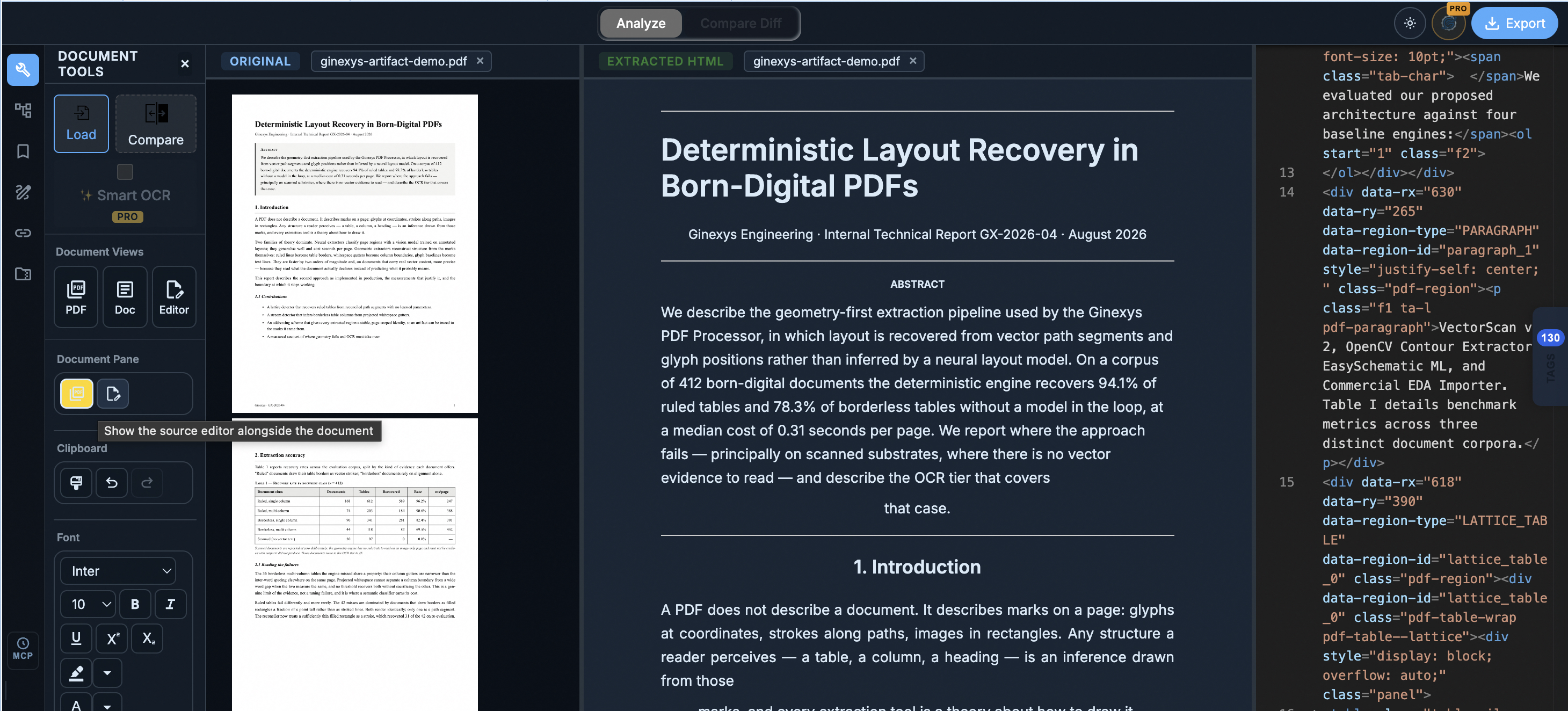
The original page, extracted document, and markup share one workspace. The document shown is demo content; its sample figures are not extraction benchmarks.
In the screenshot, the original PDF sits on the left. The middle pane shows the extracted HTML, and the editor on the right exposes its markup. Use the View controls to show the source editor alongside the document when you need to inspect that structure.
Start with one section you can recognize on the original page. Check its text, then check where it sits in the extracted document. For a table, follow a row across and confirm that each value belongs under the right heading. This gives you a more useful check than judging the page by its overall appearance.
The workbench keeps document controls tied to the pane you are using. Its dark workspace surrounds the source page, which can still be white, as this screenshot shows.
Review a table and generate its HTML
Open your table in Table Formatter. Select the table you want to work on, then use the style controls to adjust its presentation. Column letters give you a reference when selecting cells or discussing an edit.
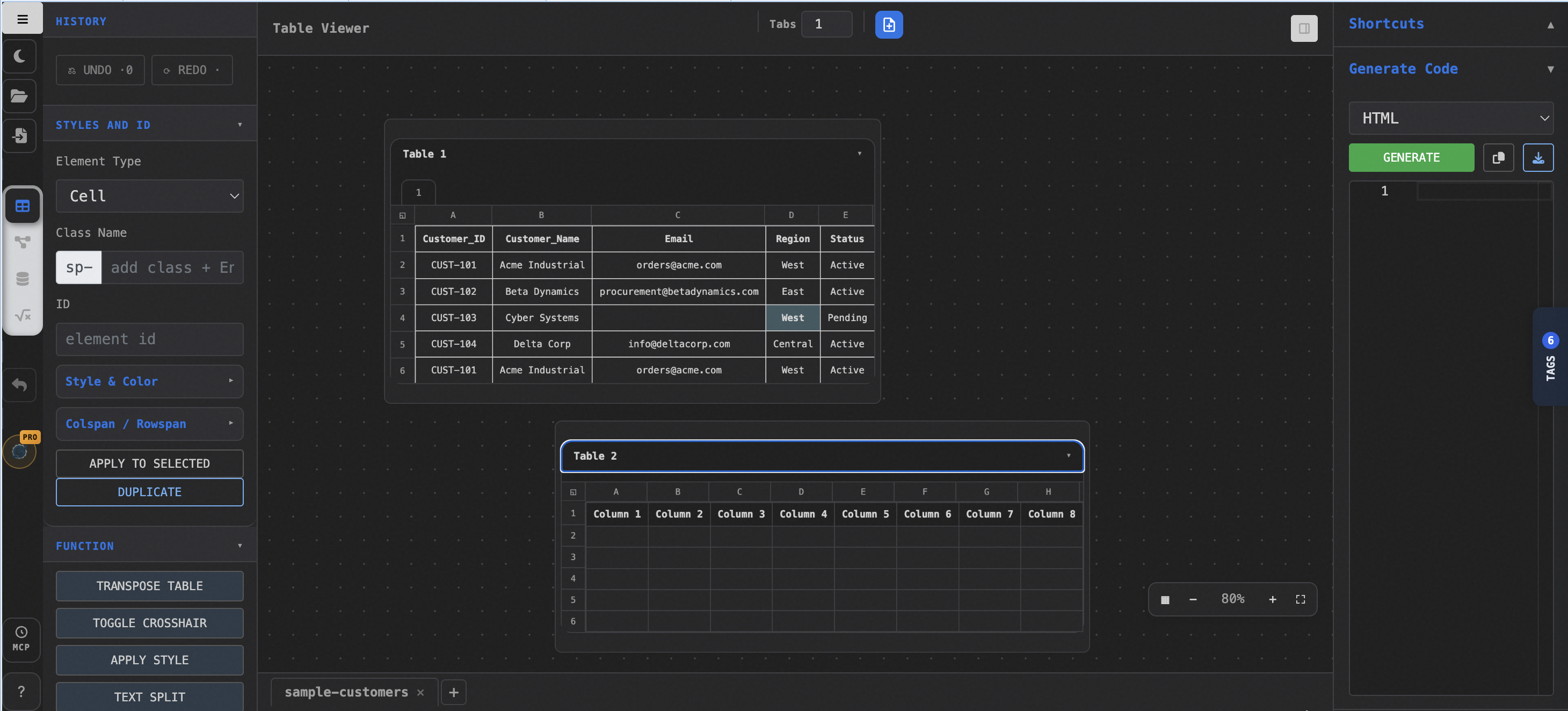
Select a table in the viewer, adjust its styling, and use Generate Code to produce HTML. The screenshot shows the HTML output format selected.
The screenshot contains two separate tables. The lower one is selected, with column letters across its top. The left panel holds table styling controls, while Generate Code sits on the right.
Choose HTML in the output selector and use Generate when you are ready to produce the markup. Before using it elsewhere, check your column labels and a few rows in the viewer. Formatting helps readers follow a table, but the values still need to be in the right cells.
Recent Table Formatter updates include clearer cell selection and improvements to ruler and grid alignment. Those changes arrived in 0.3.2 and are included in the refreshed 0.3.3 build.
Select a diagram object to reveal its controls
Open Construct and select an object on the canvas. The contextual toolbar gives you styling controls for that selection, so you can work on the object while keeping it in view.
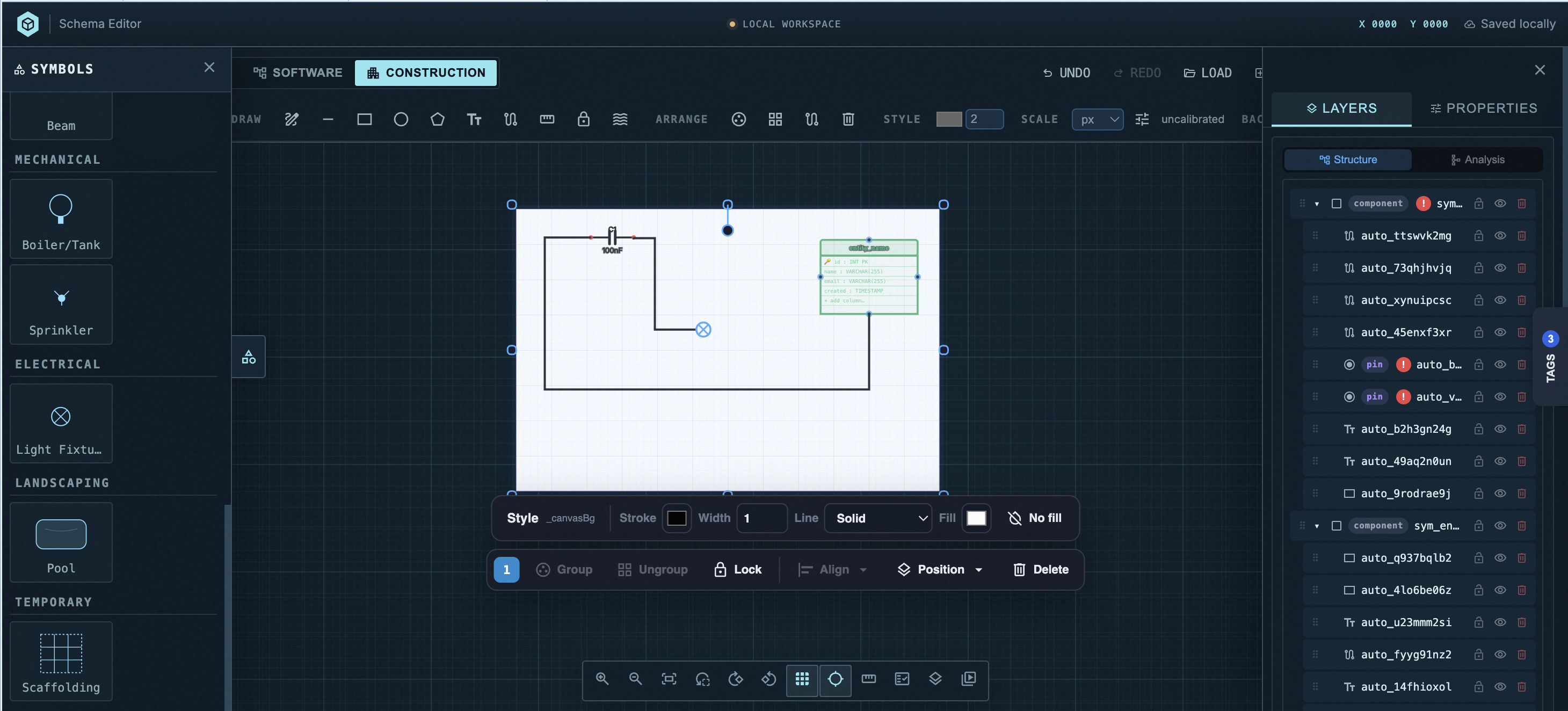
The floating toolbar follows the selection. Symbols remain available on the left, with layers and properties on the right.
The screenshot shows Construction mode and a selected object with resize handles. Use the floating toolbar to adjust the available styling options for your selection. The side panels give you access to symbols and help you find objects through the layer list.
If you are editing a connection, select the wire to work with its styling controls. Recent Construct updates also improve live text editing and wrapping. These features were introduced in 0.3.2; the 0.3.3 suite includes the current editor build.
Dark mode across the three tools
All three screenshots show dark mode. Document Workbench uses dark panels around the document panes, Table Formatter carries the theme through its viewer and controls, and Construct uses a dark canvas workspace with matching side panels.
Your content can keep its own appearance. A PDF page or a white diagram object remains visible against the surrounding interface. That distinction is useful when you are checking how the content itself will look.
Reopen claimed artifacts in VS Code
Signed-in users can open My Artifacts from the VS Code activity bar to reopen artifacts they have claimed. Use it when you want to return to a saved item without hunting through document tabs. This activity-bar view is separate from the tool screenshots above.
Version 0.3.3 also includes document fixes across tables, callout boxes, images, equations, navigation, and editor synchronization. Document Workbench packages the updated DocForensics-Layout-S scan-layout model. Complex pages still benefit from a source check after extraction.
Evidence
The three screenshots above show the updated interfaces supplied for this release. The release details follow the extension changelogs for Document Workbench, Table Formatter, Construct, and the Ginexys suite. Table Formatter and Construct features introduced in 0.3.2 are identified separately from the 0.3.3 packaging update.
Check the structure against the source before spending time polishing its appearance.
Try that on one page or table first. If something comes out wrong, report the page and the result you expected; a small example gives us a concrete place to investigate.